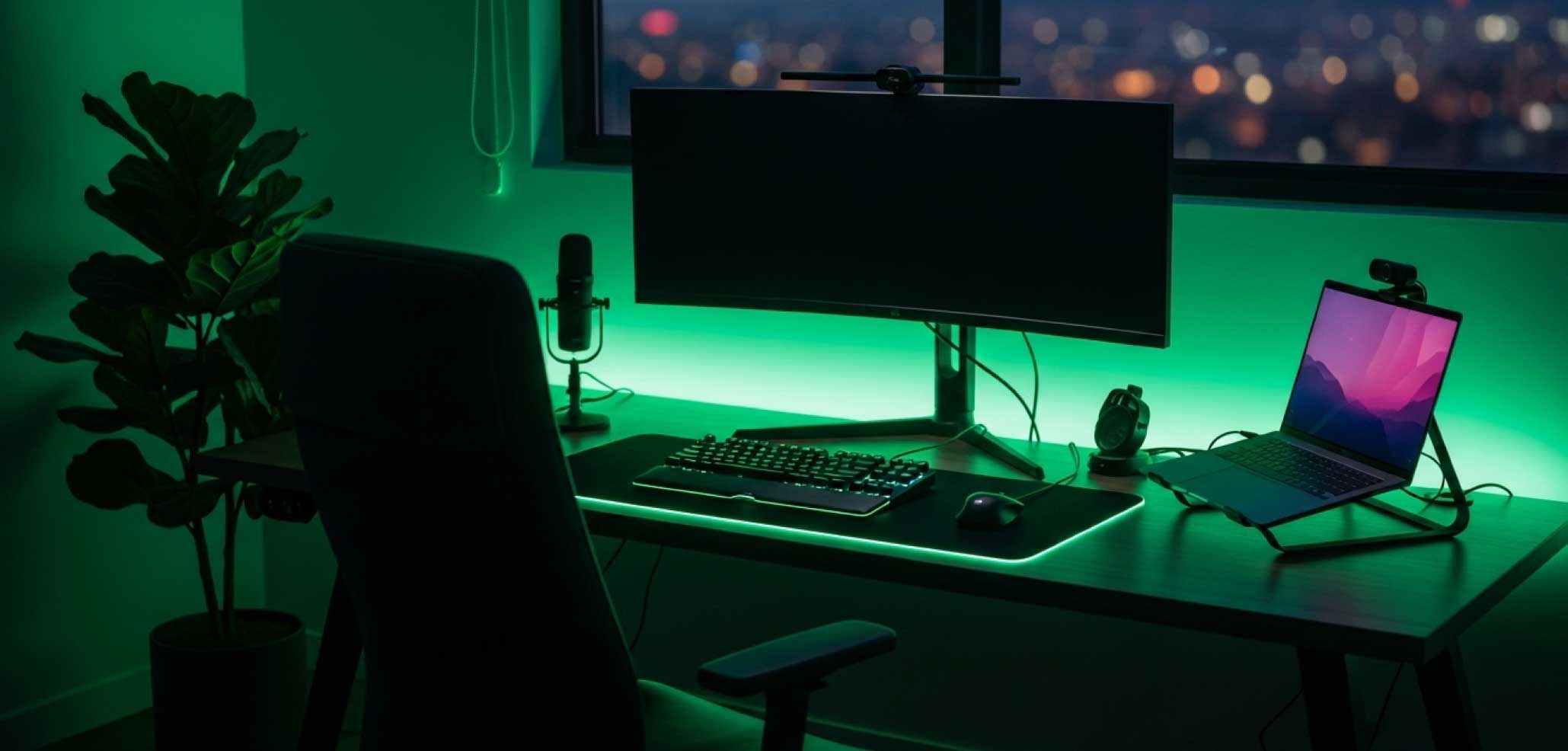
The Ultimate Remote Work Setup: Tech, Ergonomics, and Privacy
2026-02-25
The honeymoon phase of working from the kitchen table is officially over. When remote work first became the global standard, millions of professionals hacked together temporary workspaces using dining chairs, stacked books for laptop stands, and whatever corner of the living room was quietest.
But if you are a full-time remote professional today, surviving is no longer enough. You need to thrive.
Your physical workspace directly dictates your cognitive output, your physical health, and your mental well-being. A chaotic, uncomfortable desk leads to a chaotic, distracted workday. Conversely, an optimized environment allows you to drop into deep work instantly, maintain high energy levels through afternoon slumps, and—most importantly—completely disconnect when your shift is over.
Building the ultimate remote work setup isn't just about throwing money at expensive gadgets. It is about intention. It is about creating a dedicated environment that protects your posture, maximizes your workflow, and secures your digital privacy against invasive corporate monitoring.
Here is the comprehensive guide to building a workspace that works as hard as you do.
Table of Contents
- The Foundation: Ergonomics and Physical Health
- The Tech Stack: Work From Home Essentials
- The Boundary Problem: Separating Work & Life
- Software & Privacy: Protecting Your Peace of Mind
- Small Space Solutions: The Apartment Office
- Frequently Asked Questions
1. The Foundation: Ergonomics and Physical Health
The most critical component of your office isn't your processor speed or your internet bandwidth; it is your spine. Back pain, sciatica, and cervical neck strain are the silent killers of remote productivity. To build the best ergonomic WFH desk setup, you have to respect the mechanics of the human body.
The 90-90-90 Rule
Before you buy anything, you must understand proper sitting posture. When seated, your elbows should bend at a 90-degree angle to reach your keyboard. Your hips should be at a 90-degree angle to your torso, and your knees should be at a 90-degree angle to the floor, with your feet planted flat. If your feet dangle, you need a dedicated footrest to relieve pressure from your lower lumbar spine.
The Sit/Stand Desk Revolution
Human bodies were not designed to sit in a rigid position for eight hours straight. A motorized standing desk is no longer a luxury; it is a baseline requirement for a healthy remote career. The goal isn't to stand all day—standing for 8 hours is just as bad for your joints as sitting. The magic lies in the transition. Shifting from sitting to standing for just 15 minutes every hour keeps your blood circulating, prevents muscular atrophy in your core, and provides an instant boost in focus when you hit that inevitable 2:00 PM wall. When shopping, look for "dual-motor" standing desks, as they lift heavier loads smoothly and suffer from significantly less "wobble" at maximum height.
The Chair Investment
If you sleep for eight hours a night, you invest in a good mattress. If you sit for eight hours a day, you must invest in a high-quality ergonomic chair. Avoid "gaming chairs" modeled after race car seats; their bucket design forces your shoulders forward. Instead, look for office chairs with dynamic lumbar support, adjustable seat pan depth (so the edge of the seat doesn't cut off circulation to your calves), and highly adjustable armrests. Brands like Herman Miller and Steelcase are the gold standard, but the refurbished market is flooded with lightly used models at half the retail price.
2. The Tech Stack: Work From Home Essentials
Once your physical body is supported, it is time to upgrade the tools you use to interact with the digital world. The right work from home tech essentials will eliminate micro-frictions from your daily tasks.
The Display Debate: Dual Monitors vs. Ultrawide
Having enough screen real estate is life-changing. Working on a single 13-inch laptop screen forces you into a constant, exhausting cycle of minimizing and maximizing windows. But which external display route should you take?
A dual monitor remote work setup is the classic, highly productive choice. It allows you to physically compartmentalize your work. You can dedicate your left screen to communication (Slack, Microsoft Teams, Outlook) and your right screen to your active deep-work project (coding environments, design software, or spreadsheets).
Alternatively, a single 34-inch or 49-inch Ultrawide monitor removes the annoying plastic bezel right in the center of your vision. Ultrawides are incredibly immersive and are generally preferred by video editors, financial analysts working on massive timelines, and those who want a cleaner, single-cable aesthetic on their desk.
| Feature Comparison | Dual Monitors (2x 27") | Ultrawide Monitor (1x 34"+) |
|---|---|---|
| Window Management | Native & Intuitive (Snap to edges) | Requires third-party splitting software |
| Screen Sharing on Zoom | Simple (Share one standard 16:9 screen) | Awkward (Colleagues see tiny, letterboxed text) |
| Physical Ergonomics | Requires neck turning | Curved screens keep edges in peripheral vision |
| Desk Footprint | High (Requires dual-arm mounts) | Medium (Cleaner single-stand setup) |
Peripherals, Audio, and Lighting
Your laptop webcam and internal microphone are holding you back. In a remote environment, your audio and video quality is your professional attire.
- Audio First: People will forgive a slightly grainy video, but they will instantly mute you if your audio is echoing or picking up background noise. Upgrade to a dedicated USB dynamic microphone (which rejects room noise) or a high-quality headset.
- Lighting Second: You do not need a $1,000 DSLR camera to look great on Zoom. You need good lighting. A simple LED key light placed behind your monitor, shining softly on your face, will make even a standard 1080p webcam look incredibly professional.
- The Ergonomic Mouse: Ditch the flat, unergonomic magic mice or trackpads. A vertical mouse or a sculpted ergonomic mouse (like the Logitech MX Master series) forces your forearm into a natural "handshake" position, drastically reducing the risk of carpal tunnel syndrome over a decades-long career.
3. The Boundary Problem: Separating Work & Life
One of the most dangerous traps of remote work is the complete blurring of professional and personal boundaries. When your office is your living room, the temptation to "just check one more email" at 8:00 PM is overwhelmingly high.
Furthermore, you should never do personal tasks, banking, or side-hustle work on a company-owned machine. Corporate IT departments routinely deploy background monitoring software that tracks application usage, website history, and network traffic. Mixing your personal life with corporate hardware is a massive privacy risk.
The most elegant, hardware-based solution to this problem is utilizing a KVM switch for work and personal laptop.
A KVM (Keyboard, Video, Mouse) switch is a small hub that sits on your desk. You plug your beautiful dual monitors, your mechanical keyboard, your ergonomic mouse, and your high-end webcam directly into the switch. Then, you connect the switch to both your corporate work laptop and your personal home PC.
At 5:00 PM, you do not have to unplug a dozen dongles. You simply press a single button on the KVM switch. Instantly, all your peripherals disconnect from the corporate laptop and connect to your personal computer. The work laptop goes to sleep, and you reclaim your desk for gaming, personal projects, or relaxing. It creates a definitive, physical boundary between "work mode" and "life mode."
4. Software & Privacy: Protecting Your Peace of Mind
A perfectly ergonomic physical setup is only half the battle. You also need to protect your digital environment and your mental health.
The widespread adoption of remote work unfortunately brought the rise of "digital presenteeism" and invasive corporate tracking software. Also known as "bossware," tools like Hubstaff, Time Doctor, and Microsoft Viva constantly monitor your activity.
This creates a highly toxic, high-anxiety environment. If you step away from your desk for five minutes to stretch your spine, use the restroom, or let the dog out, your Slack or Teams status flips to a yellow "Away." For many remote workers, this triggers an immediate fear that management assumes they are slacking off, forcing them to remain chained to their desks in an incredibly unhealthy way.
This is where smart, ethical utility tools come into play. You need a way to protect your privacy and manage your digital status without violating corporate IT policies.
Do not buy physical USB mouse jigglers from Amazon. Modern IT security systems (like CrowdStrike) easily flag unauthorized USB devices. Similarly, never download unverified .exe files to keep your screen awake, as this is a direct violation of corporate software compliance.
The ultimate solution is MoveMyCursor.
MoveMyCursor is a secure, browser-based utility that solves digital presenteeism perfectly. It runs entirely inside a standard web browser tab using safe, native web technologies. It gently mimics human mouse movement to prevent your computer from sleeping and keeps your communication statuses green.
- Zero Installations: It requires no admin rights and leaves no files on your hard drive.
- Undetectable: To a corporate monitoring system, it simply looks like an active browser tab, completely indistinguishable from reading internal documentation or industry news.
- Pure Freedom: It allows you to take the necessary physical breaks your body needs without the psychological stress of being monitored.
5. Small Space Solutions: The Apartment Office
We don't all have the luxury of a spare bedroom with a door that closes. If you are building a remote work setup for small spaces, you have to get incredibly creative to maintain your sanity and your square footage.
- The "Cloffice" Concept: If you live in an apartment, consider removing the doors from a shallow closet. Install a sturdy, deep floating shelf as a desk, add some peel-and-stick wallpaper, and wire in some LED strip lighting. You instantly have a dedicated, tucked-away workspace.
- Go Vertical: When horizontal desk space is limited, you cannot afford to have monitor stands eating up your desk. Use heavy-duty, desk-clamping monitor arms to float your screens in the air. Mount your laptop on a vertical dock behind the monitors to hide it entirely.
- Aggressive Cable Management: In a small room, visual clutter directly contributes to mental anxiety. A nest of tangled wires makes a room feel chaotic and cramped. Use under-desk cable trays, zip ties, and neoprene sleeves to route all cables along the legs of your desk. A completely wire-free aesthetic makes a small space feel remarkably larger and more professional.
- Acoustic Dampening: Small rooms echo terribly on Zoom calls. If you don't have space for acoustic foam panels, simply adding a thick area rug under your chair and hanging heavy fabric curtains over the windows will absorb sound waves and dramatically improve your microphone quality.
Frequently Asked Questions
Do I really need dual monitors for remote work? While not strictly mandatory, dual monitors drastically improve workflow efficiency by eliminating the "context switching" penalty of constantly Alt-Tabbing between applications. It is highly recommended for developers, writers, or any role that requires referencing data on one screen while executing tasks on another.
Is it safe to use a KVM switch with a strict corporate laptop? Yes. A KVM switch is purely a hardware pass-through device for your displays and USB peripherals. It does not install any software, requires no administrative drivers, and does not transfer network data between your work and personal computers. It is completely compliant with standard IT security policies.
How can I stop my work laptop from going to sleep while I step away for a break? The safest, most secure method is utilizing an online mouse jiggler. Unlike downloadable software (which triggers antivirus scans) or physical USB dongles (which trigger unauthorized device alerts), a browser-based tool like MoveMyCursor operates entirely inside a secure web sandbox. It keeps your system awake naturally, ensuring you can take healthy breaks without triggering corporate inactivity alerts.