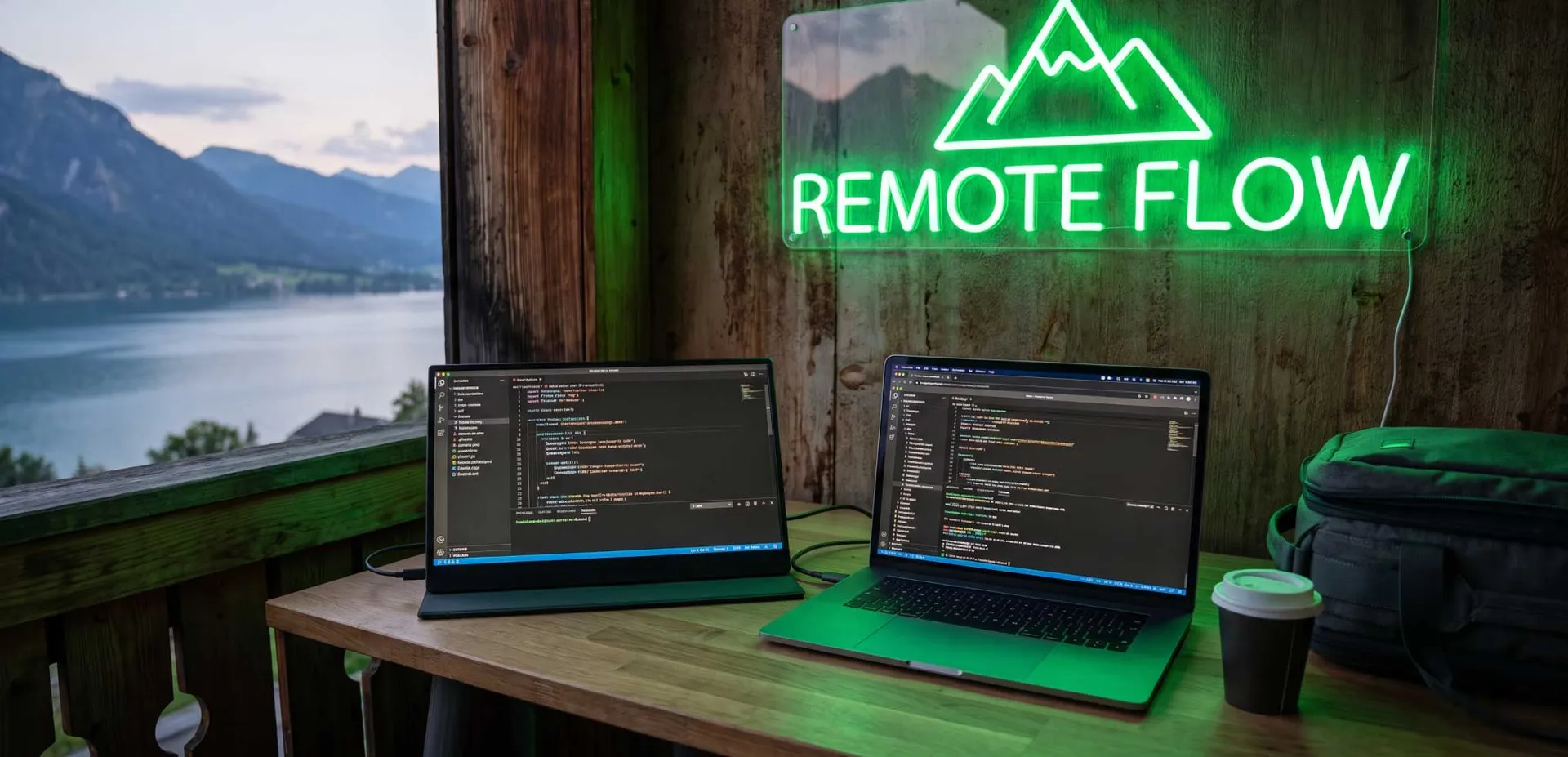
Remote work has transformed from a temporary arrangement into a permanent lifestyle for millions of professionals. Whether you're a digital nomad hopping between co-working spaces, a freelancer working from coffee shops, or a corporate employee traveling for client meetings, your productivity hinges on your ability to create an efficient workspace anywhere. A portable monitor is no longer a luxury—it's a strategic tool that can double your screen real estate, reduce eye strain, and significantly boost your output. This comprehensive guide will walk you through everything you need to know to choose the best portable monitor for your specific needs, based on expert analysis, real-world testing, and community insights from the world's largest remote work forums.
Why Remote Workers Need a Portable Monitor
The average laptop screen size is 13 to 15 inches, which is severely limiting for multitasking. Studies show that using a dual-monitor setup can increase productivity by up to 42%. For remote workers, a portable monitor offers the flexibility to have that dual-screen experience without being tethered to a desk. It allows you to keep reference materials open on one screen while working on the other, compare documents side by side, or extend your canvas for creative work. Beyond productivity, a larger visual field reduces the need to constantly switch windows, which can decrease cognitive load and improve focus. Moreover, many portable monitors are lightweight and slim enough to fit in a laptop bag, making them ideal for travel. They can also serve as a secondary display for presentations or collaborative work, enhancing your professional image.
Key Factors to Consider When Choosing a Portable Monitor
Selecting the right portable monitor involves balancing several technical specifications against your personal workflow. Below, we break down the most critical factors.
Display Technology and Resolution
The display is the heart of any monitor. For portable monitors, you'll typically encounter IPS (In-Plane Switching) panels, which offer wide viewing angles and good color accuracy, and TN (Twisted Nematic) panels, which are faster but have poorer color reproduction. For remote workers dealing with text, spreadsheets, or design work, IPS is strongly recommended. Resolution is equally important: Full HD (1920x1080) is the baseline, but 4K (3840x2160) provides sharper text and more screen real estate. However, 4K monitors consume more power and may cause scaling issues on some operating systems. Consider your primary tasks: if you work with high-resolution images or video, 4K is beneficial; for general office work, Full HD is sufficient and more battery-friendly.
Connectivity Options
Portable monitors connect via USB-C, HDMI, or a combination. USB-C is the modern standard because it carries both video signal and power over a single cable. However, not all USB-C ports support video output (look for 'DisplayPort Alt Mode' support). Some monitors also include Mini HDMI ports for compatibility with older devices. Additionally, check if the monitor supports power delivery (PD) to charge your laptop while connected—a huge advantage for long work sessions. The best monitors offer at least two USB-C ports and one Mini HDMI to ensure broad compatibility. Avoid monitors that rely solely on proprietary cables, as they limit flexibility.
Weight and Portability
Since you'll be carrying this monitor frequently, weight and thickness are crucial. Most portable monitors range from 1.5 to 2.5 pounds (0.7 to 1.1 kg) and are about 0.3 to 0.5 inches thick. A monitor that adds significant bulk to your bag will quickly become a burden. Look for models with a slim profile and a protective cover that doubles as a stand. Some covers are magnetic or have a fold-out kickstand, which adds versatility. Always check the dimensions to ensure it fits in your laptop compartment.
Brightness and Color Accuracy
Working in varying light conditions—from bright coffee shops to dim hotel rooms—requires a monitor with adequate brightness. Aim for at least 300 nits; 400 nits or more is ideal for outdoor use. Color accuracy is measured by sRGB coverage; for design work, look for 100% sRGB or higher. Monitors with factory calibration or support for color profiles are preferable. Additionally, consider anti-glare coatings: matte finishes reduce reflections but can slightly dull colors, while glossy screens offer vibrant colors but are prone to glare. For most remote workers, a matte screen is more practical.
Battery Life and Power Consumption
Some portable monitors have built-in batteries, while others draw power from the connected device. Battery-powered monitors offer true portability, but they add weight and cost. If you work near outlets, a monitor that runs on USB-C bus power is lighter and simpler. However, if you often work in locations without power, a battery-powered monitor (e.g., with a 5000mAh battery) can give you 3-4 hours of use. Be aware that connecting a monitor to a laptop will drain the laptop's battery faster, so plan accordingly. Some monitors support pass-through charging, allowing you to charge both devices from a single power source.
Top Portable Monitors for Remote Workers
After analyzing hundreds of user reviews on forums like Reddit's r/digitalnomad, r/remotework, and specialized tech communities, and cross-referencing with expert benchmarks, we have curated a list of the best portable monitors for different use cases. The table below summarizes the top contenders.
Best Overall: ASUS ZenScreen MB16ACV
The ASUS ZenScreen MB16ACV strikes an excellent balance between performance, portability, and price. It features a 15.6-inch Full HD IPS display with 300 nits brightness and a slim 0.3-inch profile weighing just 1.7 pounds. Its USB-C connectivity supports both video and power, and it includes a Mini HDMI port for legacy devices. The monitor comes with a smart cover that folds into a stand, and it has a built-in battery that provides up to 4 hours of use. Users praise its color accuracy (100% sRGB) and eye-care certification, making it ideal for long work sessions. The only downside is that the battery adds a bit of weight, but it's still one of the lightest in its class.
Best Budget: Lepow Z1 Gamut
If you're on a tight budget, the Lepow Z1 Gamut offers surprising quality for under $200. It has a 15.6-inch Full HD IPS display with 72% NTSC color gamut (roughly 100% sRGB) and 300 nits brightness. It connects via dual USB-C ports and Mini HDMI, and it includes a protective smart cover. While it lacks a built-in battery, it's lightweight at 1.6 pounds and very slim. Forum users highlight its excellent value and reliable performance for office tasks. However, the build quality feels slightly less premium, and the on-screen display controls are basic. For remote workers who need a secondary screen without breaking the bank, this is a solid choice.
Best 4K: ViewSonic TD1655
For professionals who need high-resolution detail, the ViewSonic TD1655 is a 15.6-inch 4K IPS monitor with 400 nits brightness and 100% sRGB coverage. It supports USB-C and Mini HDMI, and it includes a built-in battery with 3 hours of runtime. The standout feature is its touchscreen capability, which can be useful for presentations or creative work. Weighing 2.2 pounds, it's slightly heavier but still portable. Users appreciate the crisp text and vibrant colors, though some note that 4K scaling on Windows can be finicky. It's an excellent choice for video editors, photographers, and data analysts who need pixel-perfect clarity.
Most Portable: AOC I1601FWUX
The AOC I1601FWUX is one of the lightest portable monitors at just 1.1 pounds and 0.3 inches thick. It has a 15.6-inch Full HD IPS display with 250 nits brightness—adequate for indoor use but not ideal for bright environments. It connects via a single USB-C cable and lacks a built-in battery, relying on bus power. Its ultra-slim design makes it virtually disappear in a laptop bag. Users love its portability but caution that the brightness is low and the included stand is flimsy. For minimalists who prioritize weight above all else, this monitor is a top contender.
How to Set Up and Optimize Your Portable Monitor
Once you've chosen your monitor, proper setup ensures you get the most out of it. Follow these actionable steps.
- Check Compatibility: Verify that your laptop's USB-C port supports DisplayPort Alt Mode. If not, you may need an adapter (e.g., USB-C to HDMI). For older laptops, use the Mini HDMI port if available.
- Install Drivers: Most monitors are plug-and-play, but some advanced features (like touch or color profiles) may require driver installation. Visit the manufacturer's website for the latest drivers.
- Adjust Display Settings: On Windows, go to Settings > System > Display to arrange monitors. Choose 'Extend these displays' for dual-screen mode. On macOS, go to System Preferences > Displays > Arrangement. Drag the white menu bar to your primary monitor.
- Calibrate Color: For design work, use a calibration tool or adjust settings manually. Set brightness to match your ambient light, and adjust contrast and gamma for comfortable viewing.
- Manage Power: If using a battery-powered monitor, enable power-saving features. For bus-powered monitors, connect to a high-power USB-C port (often marked with a battery icon) to avoid disconnections.
- Optimize Workflow: Use window management tools like Microsoft PowerToys (FancyZones) or Magnet (macOS) to snap windows into predefined zones. Create dedicated workspaces for different tasks (e.g., communication on laptop, coding on monitor).
Portable Monitor Accessories to Enhance Your Setup
To maximize your portable monitor's utility, consider these accessories:
- Adjustable Stand: Many built-in covers are not ergonomic. A foldable stand like the Roost Stand or a compact laptop stand can elevate both your laptop and monitor to eye level, reducing neck strain.
- Cable Management: Use short, braided USB-C cables to reduce clutter. Velcro straps keep cables organized in your bag.
- Portable Power Bank: If your monitor lacks a battery, a power bank with USB-C PD output can keep it running for hours. Look for one with at least 20,000mAh capacity.
- Screen Protector: A matte screen protector can reduce glare and protect the display from scratches. Some protectors also add privacy filters.
- Carrying Case: While many monitors come with a sleeve, a hard case offers better protection during travel. Brands like Tomtoc make cases specifically for portable monitors.
Common Mistakes to Avoid When Buying a Portable Monitor
Based on forum discussions and expert reviews, here are pitfalls to avoid:
- Ignoring Connectivity: Don't assume all USB-C ports work. Verify your laptop's specifications and the monitor's compatibility. A monitor that only works with certain devices can be frustrating.
- Overlooking Brightness: A dim monitor (under 250 nits) is unusable near windows or outdoors. Always check brightness ratings and read user reviews about real-world performance.
- Choosing Resolution Over Practicality: 4K monitors are great but can cause scaling issues and drain battery faster. If your laptop is older, stick with Full HD.
- Neglecting Weight: A monitor that adds 2+ pounds may seem light initially, but after a full day of walking, it becomes noticeable. Prioritize weight if you move frequently.
- Skipping Reviews: Always read recent reviews from verified buyers on Amazon or forum discussions. Look for common complaints about build quality, dead pixels, or connectivity issues.
Conclusion
Investing in a portable monitor is one of the most effective ways to enhance your remote work productivity. By carefully evaluating your needs—whether it's resolution, portability, or connectivity—you can find a model that seamlessly integrates into your workflow. The ASUS ZenScreen MB16ACV stands out as the best all-rounder, but budget-conscious workers will find the Lepow Z1 Gamut a capable alternative. Remember to optimize your setup with proper ergonomics and accessories to fully reap the benefits. With the right portable monitor, you can turn any location into a high-productivity workspace.
Frequently Asked Questions

Written by
Afzal Mustafa
ContributorA mysterious author who loves writing great content.
Keep Reading
View All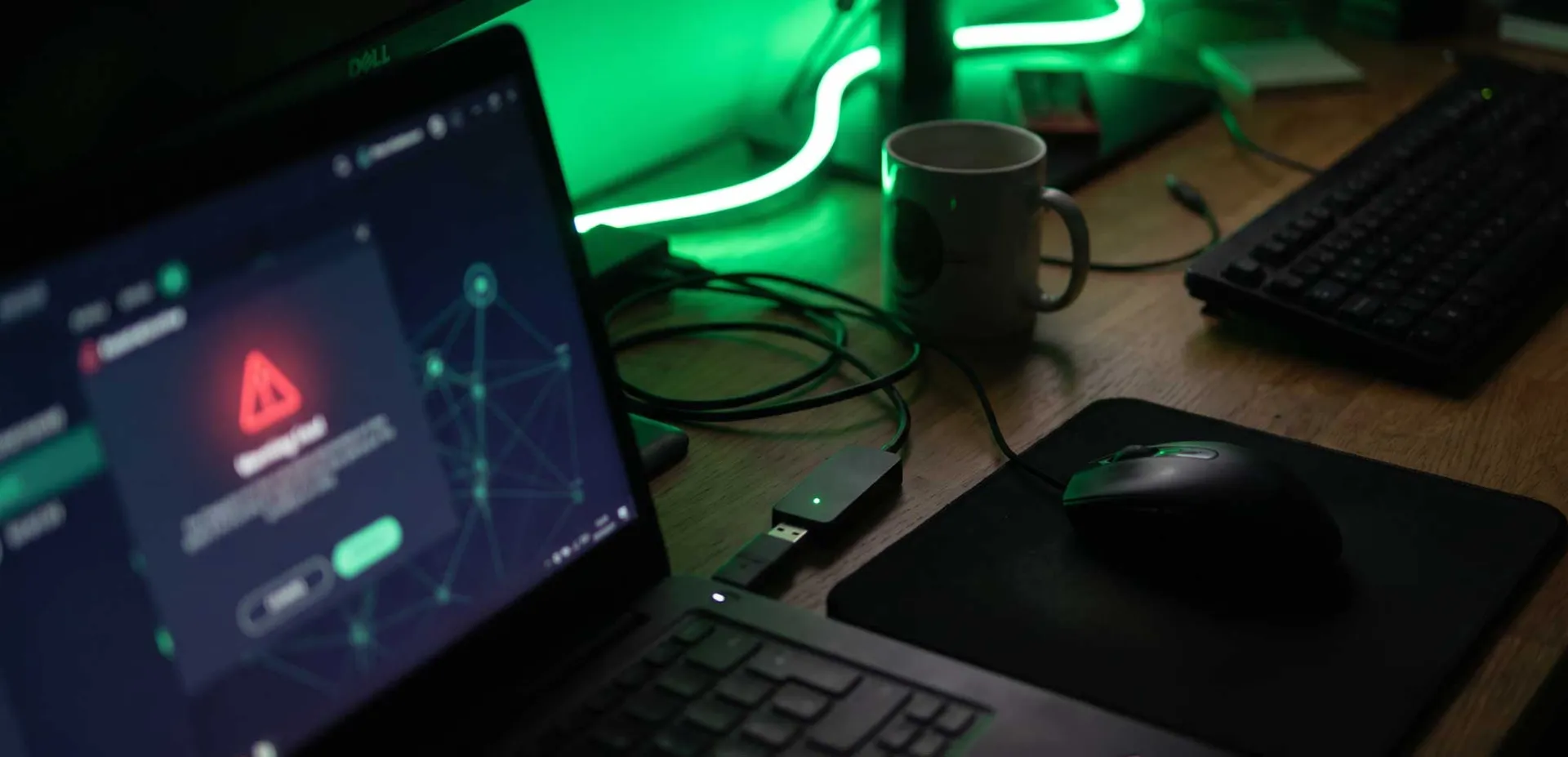
Why Physical Mouse Jigglers Get Flagged by Corporate IT Departments
Discover why corporate IT departments flag physical mouse jigglers, including detection methods, security risks, policy violations, and ethical alternatives for remote workers.
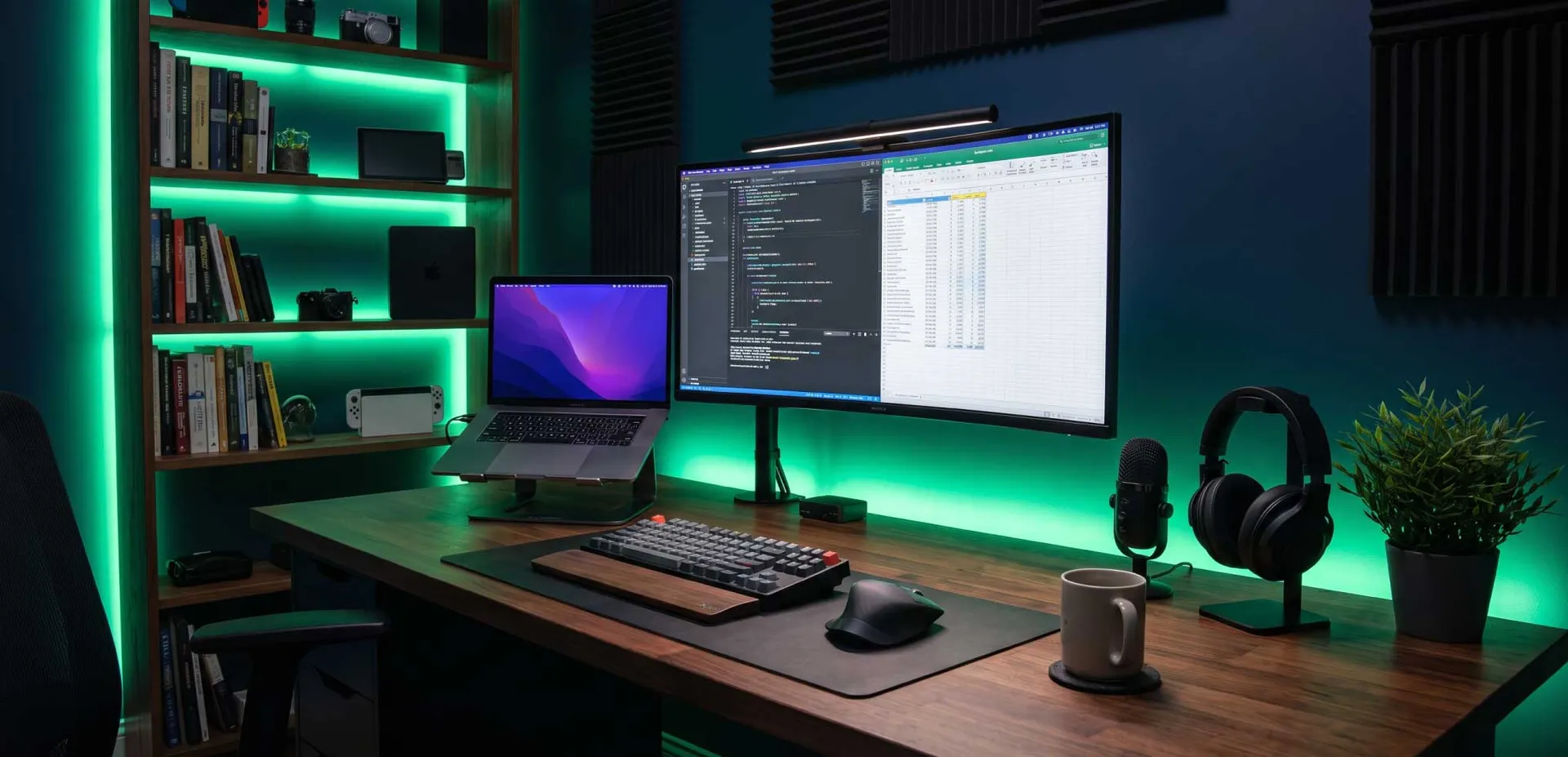
The Complete Remote Work Setup Checklist for Maximum Productivity
Discover the ultimate remote work setup checklist covering ergonomics, technology, environment, routines, and health. Expert advice to boost productivity and well-being for freelancers and remote professionals.